| A TECHTORIAL |
SIMULTANEOUS AND CONSECUTIVE SOUNDS
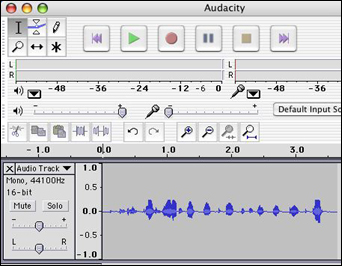
Notice that when you record, an �audio track� appears. If, while recording, you click the yellow square to stop recording and then begin recording again, you�ll create a new audio track. Both tracks then will play at the same time. That is helpful if you teach music, for example, and want to record one student playing guitar, while another plays drums, and a third plays keyboard, and then play all three tracks simultaneously. If you want to record your first graders journal entries, however, you won�t want all the students� recordings to play at the same time. To record consecutive rather than simultaneous tracks, instead of clicking the yellow square to stop recording, click the two parallel lines to the left of the yellow square to pause recording. Then click the Pause button again to begin recording a new track. When you finish recording all tracks, then press the yellow square to stop. and the green triangle to play back. Notice how smooth the transitions are between students. Advanced users can play with microphone input levels and other features, but for most educators that�s all you need to know to record sound. Next: Editing sound.
|