| A TECHTORIAL |
STEP TWO: EDIT SOUNDNow, let�s look at editing sound. For most classroom recording, you won�t need to edit a thing. You�ll record something and, if it sounds good, you�re done. What if you record a lecture for a sick student, however, and later realize that part of the recording is hard to understand? How can you cut out and re-record audio?
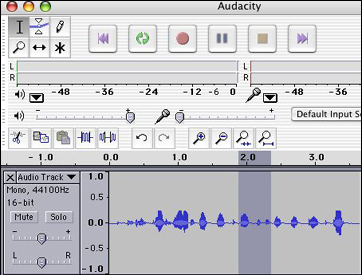
If you click once in an audio track, a black line will appear. You can hold and drag that line to select and delete a portion of the track. Play the audio first, decide exactly where you want to delete, and click and drag over that portion. Then, click the scissors icon (far left in the example below) to remove it. Don�t be afraid to play around with Audacity to learn about more exciting features. You can use a number of tools to alter the sounds you record, creating a number of interesting effects. For most users, however, editing is fun, but not necessary. Next: Sharing sound.
|