BACKGROUND MATERIAL
Now, let's do something about that white background!
If all you're going to do is view or present the flowchart on your computer -- and not print it --
click Format > Background > Fill Effects and pick a really cool background.
To print a flowchart with a background, however, you'll need to:
- Click View > Zoom > 80 percent and OK to make sure you can see the whole page.
- On the Drawing toolbar, click Autoshapes and a rectangle, and then draw a rectangle that covers the entire document. (Your flowchart now is hidden.)
- On the Drawing toolbar, click the paint can to select color, gradient, texture, and so on for the rectangle's background.
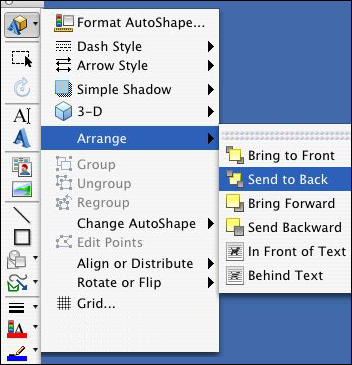
- Click the first icon on the Drawing toolbar. On some versions of Word, it's a blue A; on others, it's the
word Draw. Click Arrange > Send to Back. (or, in this case, Send Backwards, which moves you back one layer.)
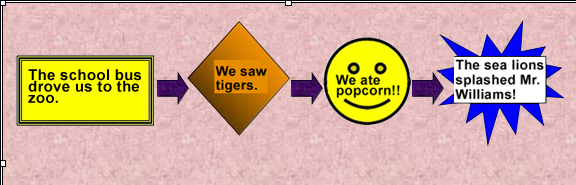
This is what your chart might look like.
- Save your work.
Next: Inserting images.
|

