ALL THAT JAZZ
You can adjust some of the visual elements in your flowchart to personalize it or make it more attractive. Try a few of the tips below:
- Font: Change font color, size, and style just as you would in any Word document. Not sure what look you're going for? Highlight a few words and play with the tools on the Formatting toolbar (View > Toolbars > Formatting).
- Boxes: Use the paint can icon on the Drawing toolbar to add a fill color (play with the Gradient, Textures, and Patterns options), or select another drawing tool to change line width or color. Use a different Autoshape (smiley faces and other fun shapes are available) or adjust the size of the boxes.
- Arrows: Change line width or color.
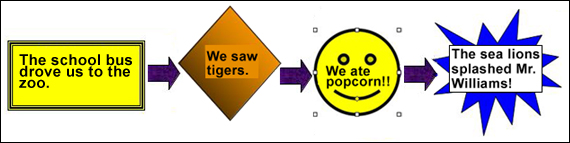
This is what your flow chart might look like now:
Next: Background options.
|

