STEP TWO: INSERT STUDENT SLIDES
You'll need access to
students' PowerPoint presentations for the middle slides in your
show. Be sure they're saved to the network, a single computer, a
commonly accessible folder, or individual CDs. Then:
- In presentation you've
begun to create, click between slides 1 and 2.
- Click Insert>Slides
from Files, click browse, and locate the first student's PowerPoint
presentation. You'll see all the slides in the student's presentation.
- Click one or more
slides -- as many as you want to insert into your show. (Click
"Keep source formatting" to ensure that slides retain their original
background, fonts, and so on).
- Click Insert.
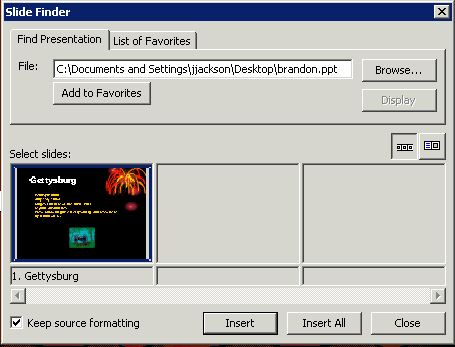
- Click Close.
- Repeat the steps above
for each student presentation.
-
- Save your work!
The sample below includes
a title slide, two students' slides, and a closing slide.

Next: Let the show begin!
|

