STEP
THREE: LET THE SHOW BEGIN
The final step is to create slide
transitions, so the presentation continues without help from you.
- Click Slide Show>Slide
Transition and choose a transition that is not overly dramatic.
(Hint: Try Fade Smoothly.)
- Click "Advance Slide
Automatically after�" and change the timing to 4 seconds. (Note:
If slides contain a considerable amount of text, you might want
to lengthen that time.) Click Apply to All Slides.
- Save your work.
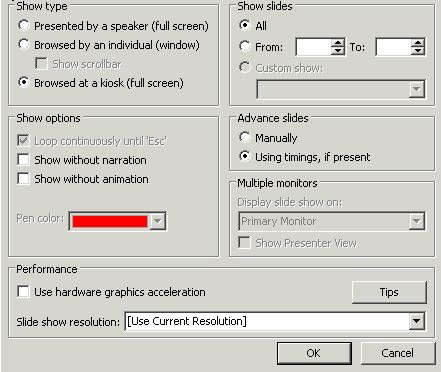
To set up the slide
show to run by itself,
- Click Slide Show>Set
Up Show.
- Click Browsed at a
kiosk (Full Screen).
- Click OK.
Test your special event PowerPoint
show by pressing F4 (on a PC only) or by clicking Slide Show>View
Show. Slides should transition automatically, and the presentation
should start over again when it reaches the end.
You're now ready to
present your slide show at your next special school event. A classroom
computer will work just fine for displaying your show, giving parents
something to look at while you're speaking to other visitors.
Next: Learn more!
|

