|
STEP TWO: ADD COLUMNS AND TEXT
To add articles and announcements to your newsletter:
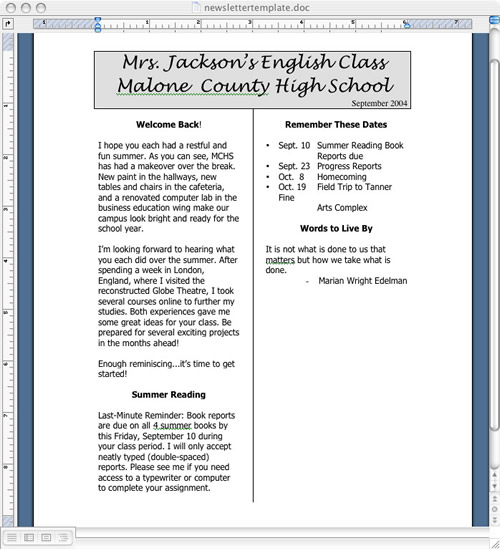
- Click just below the flag.
- Click Insert > Break > Section Break (Continuous).
- Click Format > Columns and choose Two.
- Click in the box next to Line between, and then click OK. You now have a left and right column, with a line separating them. (The line appears once you click in the right column.)
- Type the text for the newsletter.
- To separate articles and/or information, add extra returns, add and center headlines, or use the line tool on the Drawing toolbar (View > Toolbars > Drawing) to draw separation lines.
- To save space in the left column for clip art or photos you'll insert later and move to the right column to continue adding text, click Insert > Break > Column break > OK.
- Your newsletter now might look something like this:
- Save your work.
Next: Add clip art, borders, and boxes.
|

