|
STEP ONE: RAISE THE FLAG
The area of a newsletter or newspaper where the publication's name and logo are located on the front page is called the flag. To create a flag for your classroom newsletter:
- Open Microsoft Word.
- Click Table > Insert > Table.
- Click the up or down arrows to select 1 row and 1 column, and then click OK. You now should have one cell (or box) that extends from the left to the right margin of the document.
- Type the name of the newsletter, the date, and any other information you want to include in the flag. Be sure to hit Enter/Return after each line of text.
- Highlight the text and click the Center Align icon in the formatting toolbar at the top of the Word window. (If you don't see the Center Align icon, click View > Toolbars > Formatting.)
- Select desired font size, style, color, and background color. (Note: Unless you'll be printing the newsletter in color or displaying it on a Web site or bulletin board, stick to a light grey for a background.)
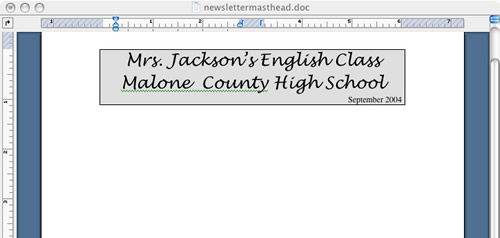
- Your newsletter might look something like this:
- Save your work.
Next: Add columns and text.
|

