|
STEP FOUR: INSERTING NARRATION INTO THE SLIDE SHOW
Now it's time to insert the narration into your slide show!
- Minimize the Sound Recorder (Click the underscore icon ( _ ) at the top right of the Sound Recorder window.).
- Maximize the PowerPoint presentation by clicking the presentation title and PowerPoint icon in the Start bar. Make sure the majority of the window displays Slide 2, and not the Title Slide.

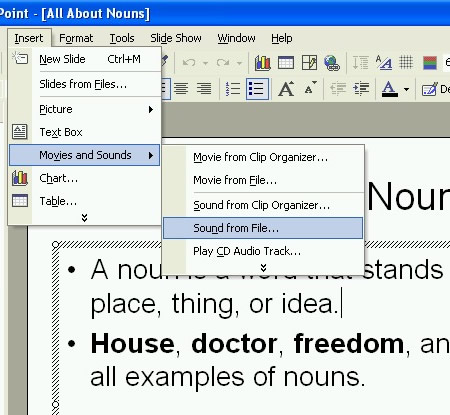
- Click Insert>Movies and Sounds>Sound from File.
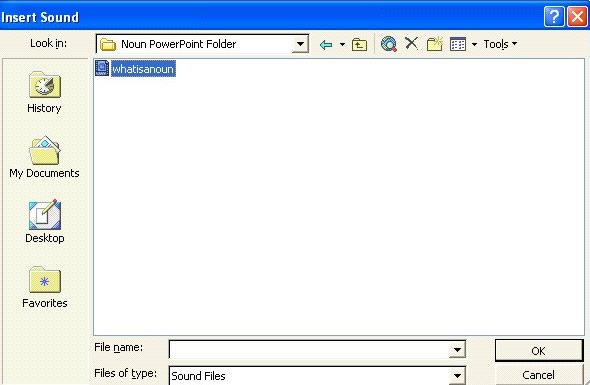
- Click the file name of the sound you recorded, and then click OK.
[
You will be asked whether or not you want the sound to play automatically. Make your selection based on what you want to happen when you run the slide show. For now, click Yes.

- A blue megaphone will appear on the slide.
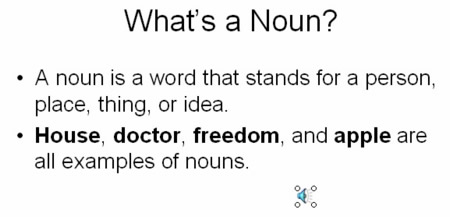
The narration is now inserted into your slide show.
- Save your PowerPoint presentation.
With your PowerPoint presentation open, click Slide Show>View Show to see your slides and hear your narration!
Next: Tips and tricks!
|

