|
|
TIPS AND TRICKS
- To hide the blue megaphone from view, draw a square with no borders and in the same color of your background (such as white) and place it on top of the megaphone.
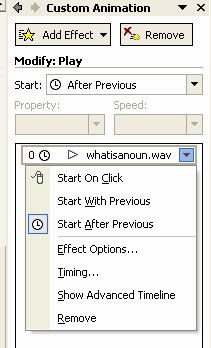
- To change when a sound is heard, click Slide Show and Custom Animation, and then select one of the options that appears below the sound.
- Use narrations to make your slides interactive. Here's an idea for an interactive slide for teaching the initial "C."
- Create a PowerPoint slide and add four pieces of clip art: three objects that begin with the letter "C," and one object that does not begin with "C." (See Creating a Class PowerPoint Presentation for how to add clip art).
- Record two sounds: "Great job!" and "Oops! Try again!"
- Insert both sounds onto the slide.
- Use Copy and Paste to duplicate the "Great job!" narration two more times.
- Arrange the sounds and images so that the "Great job!" megaphone is beneath each image that starts with "C," and the "Oops! Try again!" megaphone is beneath the image that does not start with "C."
- Have individual students or groups of students click the megaphones under the images that start with "C."
Next: Learn more!
|
|

