|
STEP 3: SEARCH WITH WINDOWS EXPLORER
If the file you're missing isn't one of the files opened most recently, you're probably still hunting for it. If so, it's time to widen the search:
- Click Start and then mouse over Search. (Note: The Search option might be called Find on some versions of Windows.) Notice the mouse-over text that appears.
- Click Search to open the Search Results window.
[Insert 4startsearch]
On some versions of Windows, mousing over Search will open a menu listing various search options, such as For Files or Folders, On the Internet, and so on. Click For Files or Folders to search for a missing file.
- Click the correct category beneath What do you want to search for? on the left side of the Search Results window. You might choose, for example, Pictures, music, or video; Documents (word processing, spreadsheet, etc.); All files and folders;�.
[Insert 5whatdoyouwanttosearchfor]
- Click All files and folders. A search criteria form will open.
[Insert 6searchcriteria]
- If you know the exact name of the missing file, type it into the first blank. If you know a word or phrase in the missing file, type it into the second blank. Click the arrow in the blank beneath Look in: and choose the drive or folder you want to search in.
- Click Search.
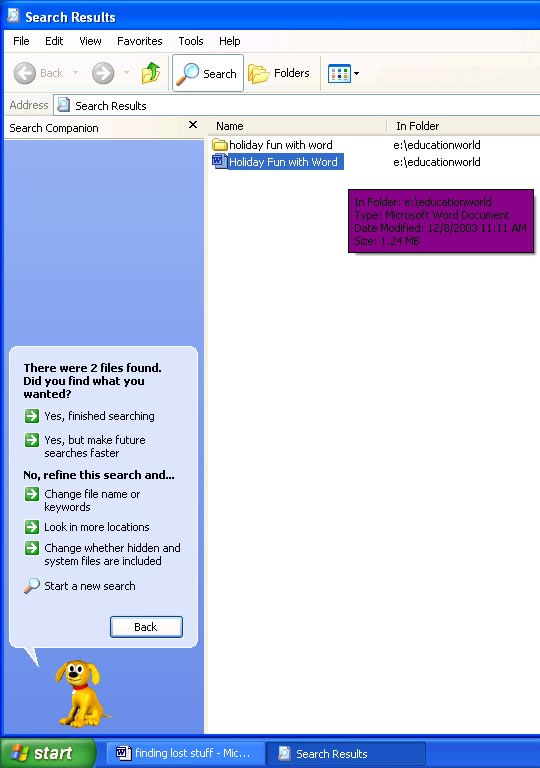
Windows Explorer will find and list any files with the name or containing the phrase indicated in the search criteria form. If the missing file is on that list, double-click the file name. Then go to the end of this techtorial for some important tips!
Next: All is not lost -- yet!
|

