| A TECHTORIAL |
CHOOSE YOUR IMAGES
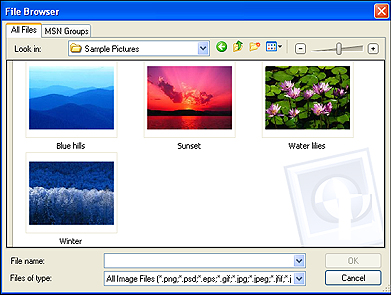
Open PhotoStory3, click Begin a New Story, and then click Import Pictures. PhotoStory3 automatically opens My Pictures. If you have stored any photos there, they�ll pop up in a new window. Otherwise, you�ll probably see a folder called Sample Pictures with a few photos in it. Note the toggle bar at the top right corner of this window. If you have lots of pictures, be sure to click Thumbnail view (the square with the blue bar just above the lily picture in the above screen shot), and then move the toggle bar until you can see the subject of your photos. That�s particularly helpful at the end of the year when you might have dozens of classroom shots to sort through. Also note that you�re not limited to the photos already saved on your computer. Keeping copyright issues in mind, you can save such images as maps, clip art, graphs, photos, and more from the Internet and insert them into your PhotoStory project. For a good overview of using images legally in the classroom, see Copyrights and Copying Wrongs.
|