INSERT IMAGES
Are you using Microsoft's Clip Art Gallery? Just double-click any image, or click the image once then click Insert.
Are you getting images from the Web? Mac users simply can click and drag images from the Web to a Word document.
Or, both Mac and PC users can right-click an image (CTRL click on a Mac) and select Copy or Copy Image or something
similar. Then, open Word and click Edit > Paste! (You also can opt to save the image if you prefer.)
Let's try it!
For this techtorial, we've selected the butterfuly image from Discovery School, but you can choose any image you like:
- Open a Word document. Type the title "Butterfly," your name and the date, and leave a blank for the student's
name.
- Open your browser (Internet Explorer, Firefox...)
- Go to Discovery Schools' Clip Art Gallery.
Select Science from the drop-down menu, and browse until you find the black-and-white butterfly.
- If you have a Mac, drag the image to your Word document. Otherwise, right-click the image, select Copy or
Copy Image, go to Word and right-click Paste or Paste Image.
- Double-click the image. The Format Picture window (called a pane in Mac) will appear. Click the Layout tab,
select Tight, and then click OK.
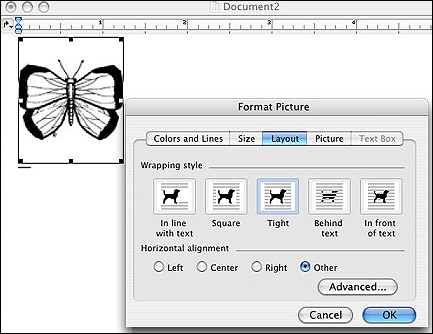
That will allow you to freely move your image around the page.
-
- Click View > Zoom and change the percentage to 80 percent. (You want to be able to see the whole page.)
- Click the image, hold down the mouse button, and drag a corner of the image to enlarge it to cover most
of the page. Your page might look like this.
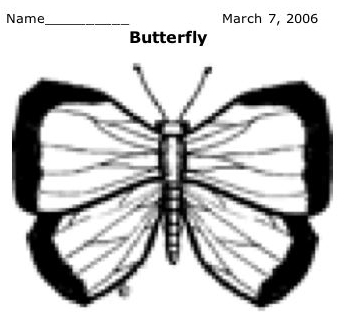
Don't worry if the image is blurry -- soon, it won't even be on the page.
- Save your work.
Next: Outlining the image.
|

