|
FORMAT THE IMAGE
- The image now should be in your document. Double click the image to open the Format Picture window (called a pane in Mac).
- Click the Layout tab, select Tight, and then click OK.
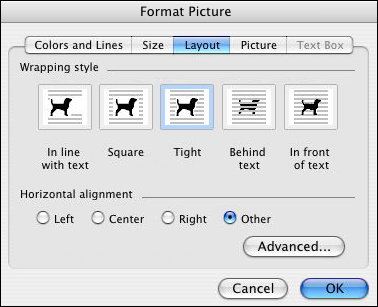
Now, you can freely move your image on the page.
- Click View > Zoom and change to 80 percent. (You want to be able to see the whole page.)
- Click the image, hold down the mouse key, and drag a corner of the image to enlarge it, so it covers most of the page. You also might want to move down the image a bit, leaving room at the top of the page for a title and the student's name.
- Your page should look like this:

- Save your work. (Perhaps as "snowmanconnectthedots").
Next: Going dotty!
|
|

