|
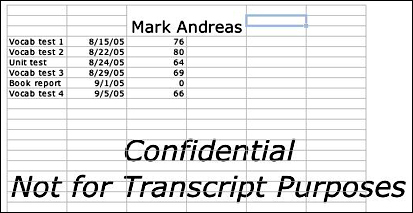
Sometimes, you'll want to use text as a watermark; for example, when indicating that data is confidential during parent conferences or for other unofficial uses. Using text as n Excel watermark is trickier than using an image, but it can be done. Just be prepared to play around a little here and there!
- Open Excel (or a new spreadsheet).
- Click View > Header and Footer > Customize Header.
- Click in the Center Section.
- (Here's where the playing around comes in!) Hit ENTER/RETURN on the keyboard about 20 times, and then type the text you want to use as the watermark.
- Highlight the text you typed, and click the Format Text icon.

- Choose a font type, style, and size. (Note: There is no option to lighten the text or change its orientation. Keep that in mind as you play with where the text will land on the spreadsheet.)
- Click OK twice.
-
You might need to type data into your spreadsheet (or go to File > Page Preview) to see the watermark.
For those comfortable with Excel and other programs, if you must have a text watermark that's more transparent, considering the following:
- Create a watermark in Excel.
- Take a screen shot of the watermark.
- Save the screenshot as a .jpg.
- Insert the watermark text (now actually an image).
- Make the image transparent. Phew!
Next: Learn more.
|

