|
STEP THREE: CREATE A TESSELLATION WITH YOUR OWN POLYGON
As you can see, it's pretty simple to create a tessellation with regular polygons. But what about irregular ones? Follow the steps below to create a shape all your own and then make a very individualized tessellation from it!
- Click Sheet 2 at the bottom of your spreadsheet. You now have
a clean slate to work on.
- Click View>Zoom>200 percent, and then click OK. (You need to
be very close up for this!)
- Click the Lines tool on the Drawing toolbar, and then click
Freeform.
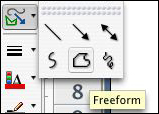
- The freeform tool allows you to create a polygon with straight
lines. We want to draw a three-sided polygon with two straight
sides and one jagged side. So, holding down the shift key (which
keeps the lines straight), draw a line from the top left corner
of cell A1 to the bottom left corner of cell A4.
- Don't stop yet! Keep drawing to the far right corner of cell
A4.
- Don't stop yet. This is the fun part! Draw a zigzag pattern
of your own choice -- one that eventually will connect your last
line's endpoint to your first line's starting point.
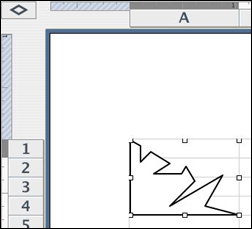
- When you've connected the end of the zigzag line to the starting
point�click. Your polygon should look something like this:
Next: Time for reflection.
|

