| A TECHTORIAL |
|
STEP THREE: JUST YOUR STYLE
You have the basic text and you have hyperlinks to move through the show in a nonlinear fashion. Now, it's time to add a little style to the presentation. A few options are listed below:
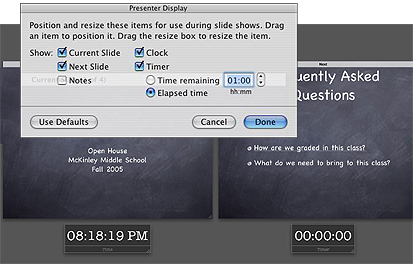
One feature not found in Microsoft PowerPoint is Keynote 2's
ability to project one screen for viewing by an audience and another
screen for viewing by the presenter. So, your class might see
only Slide 1 on the classroom projector or TV monitor, while you
can see both Slide 1 and the next slide, as well as such items
as elapsed time, notes, and a clock on your laptop or desktop
machine. Click Keynote>Preferences and then click Presenter Display to explore more options.
Next: Learn more.
|