|
STEP TWO: ADD HYPERLINKS
A hyperlink is anything -- a word, phrase, image, and so on -- you click to go to a new location, whether it's to a new Web page, file, or slide. Hyperlinks are helpful to use in lectures because, instead of having to move from one slide to the next, you can make a list of items (such as major battles of World War II) on one slide, and hyperlink each item on the list to another slide. That makes presentations far more interactive and relevant.
Let's link the frequently asked questions on Slide 2 to the answers on 3 and Slide 4.
Click Slide 2, and then click three times on the question, How are we graded in this class? to highlight the entire sentence.
Click the Inspector button in the menu bar.
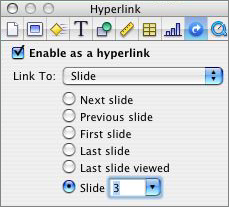
In the Inspector window, click the Hyperlink button (blue circle with curved arrow).
Click "Enable as Hyperlink," choose "Link to Slide," and then
click either "next slide" or the last option, "Slide__" and type
"3." Notice that you also can choose to link to a Web page, another
Keynote file, or to an e-mail message.
Close the Hyperlink pane. Your question about grades is now underlined.
Repeat the steps above to link the question What do we need to bring to this class? to Slide 4.
Save your work.
Test your hyperlinks by clicking Play. Now, instead of simply clicking the
spacebar, mouse, or arrows to move to each subsequent slide, you
can click the two questions on Slide 2 to move to the correct answers.
Click ESC when you are ready to continue.
Next: Make it pretty.
|

