|
STEP TWO: INSERT IMAGES
Insert Photos
Although the photos provided by Pages are pretty, you'll want to replace them with your own images. The good news is that the photos provided are "placeholders," meaning each image easily can be replaced by another image simply by dragging a new image on top of an existing image.
To insert photos from iPhoto:
- In Pages, go to the page you want to insert the photo into.
- Click the Media button in the toolbar at the top of the Pages
window.
- Choose iPhoto in the drop-down menu. (Notice that you also can
insert movies or music if the newsletter is going to be viewed
only on a computer and not in print.)
- When iPhoto opens, click the photo you want to insert and drag
it on top of any existing photo. The new photo instantly will
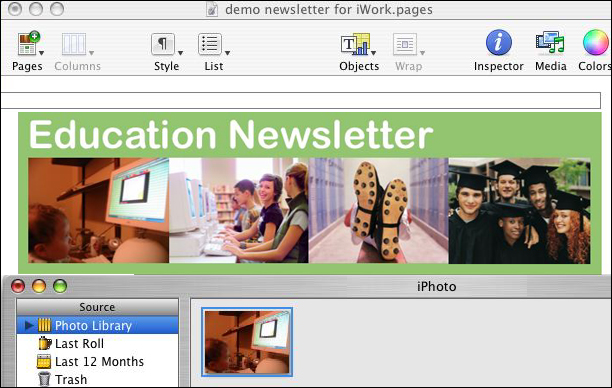
replace the existing photo. In the illustration below, notice
that the iPhoto photo has been dragged into Pages and has replaced
the first photo in the title box.
- Repeat the steps above for each photo you want to add.
- Save your work.
Next: Inserting Clip Art.
|

