|
HIGHLIGHTING
To select a layout for the newsletter:
Open Pages. (Double-click the hard drive button on your Desktop, and then click Applications>iWork>Pages. Or double-click the Pages button in your Dock.)
Click Newsletters from the list on the left.
Double-click the Education Newsletter template. A pre-made newsletter will
appear. You'll see a green title box, nonsense text (called Lorem
Ipsum) used by publishers to indicate where text eventually will
be, and photos.
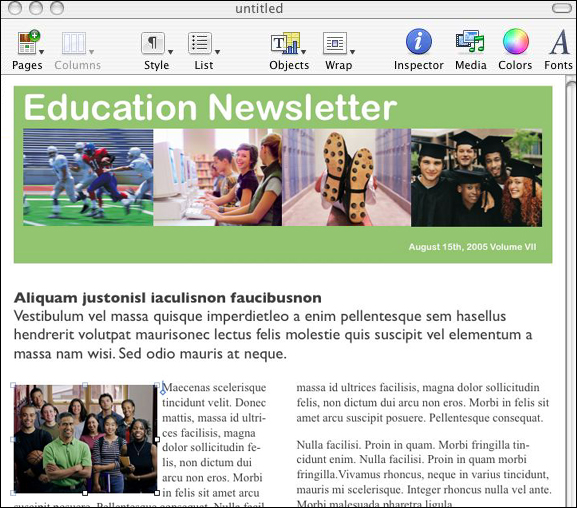
Scroll up and down. Notice that the newsletter is just one page long.
Click the Pages button at the far left of the toolbar at the top of the Pages window to choose among a variety of page layouts, as well as to add new pages.
This classroom newsletter will be two pages long. Information about the class will appear on the front and back of a single page. Click "2 & 3 Column Inside." After a few seconds, a second page will appear with two columns on the top half of the page and three columns on the bottom.
To change the number of columns on either page, scroll to the correct page, and then click the Column button in the toolbar and select the number of columns.
Save your work (Click File>Save).
Next: Inserting images.
|

