|
SIMPLIFYING SHORTCUTS
Many teachers use "shortcuts" or "aliases" to make it easy for students to go to a file or Web page. How can you make a shortcut or alias?
- Find the address bar in your Internet browser. The Address bar
is a long white blank containing the address for the Web page
you're using. The address for this techtorial, for example, is
http://www.educationworld.com/a_tech/
techtorial/techtorialintro.shtml.
- Look just to the left of the actual address and you'll see an
icon (picture). In Internet Explorer, it looks like the "at" icon.
(In Safari and other browsers, the icon will look different, but
it works the same way!)

- Click, hold, and drag the icon to your computer's desktop. Release
the mouse button. You now should see an icon on your desktop that
links to that Web page. That icon is your shortcut!
Now, students simply click that icon to go to the designated Web site. If your students are not yet reading, however, or if you have multiple shortcuts on your desktop, how do you make each shortcut easy to find and use? You can simplify -- and clarify -- your shortcuts by changing the icon pictures.
Find the apple with the word "Techtorial" on it at the top right of the techtorial page. Right click (or hit CTRL and click on a Mac with a one button mouse) on the apple and select "Copy" or "Copy Image to Clipboard."
If you're working on a Mac:
- Go to the shortcut you made earlier on your desktop.
- Hit CTRL and click and select Get Info.
- Click the small icon (picture) on the Get Info window.
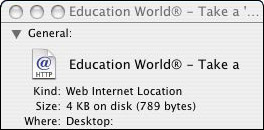
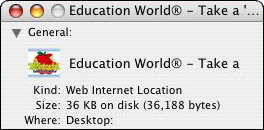
- Click Edit>Paste. Voila! On both the Get Info window and on
your shortcut or alias, your icon is now the Techtorial apple.
If you're working on a PC:
- First, you'll need to paste the Techtorial apple into its own file. Go to Picture Editor (Start>All Programs on many machines running Windows XP), Photoshop, or any other graphics program, paste the apple into a new file, and save it on your desktop.
- Right-click the shortcut icon and select Properties and Change Icon.
- Click Browse to find the Techtorial apple file. When you find the file, click the apple, and then click OK twice.
That's it! Now, you simply can tell students to click the apple to go to this techtorial page.
You also can create a shortcut to a worksheet you've made in Word or AppleWorks! Just save the file to the desktop, then follow the steps above.
Remember, you can copy any image on your computer -- clip art, an image on the Web, a scanned photo�.
Next: Simplify by magnifying.
|

