STEP
THREE: ADD MUSIC
Note: If you
plan to use music written or performed by someone else, see the
copyright note on the next techtorial slide.
Decide which slide you'd
like the music to start on. The title slide or the first photo slide
usually is a good place to start.
Music can be added to
a PowerPoint presentation from one of two places: from a music file
(such as an MP3 or MP4 file) saved on your computer, or from a CD
playing on the computer while the slide show is running.
If you want to use music
saved on your computer:
- Click Insert>Movies
and Sounds>Sounds from File.
- Select the right file
and click Insert.
- When asked, "Do you
want the file to play automatically?," click Yes.
If you want to use music
on a CD:
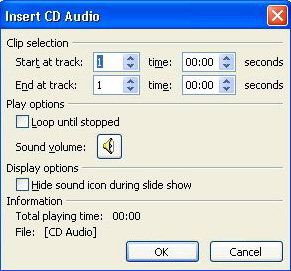
- Click Insert>Movies
and Sounds>Play CD Audio Track.
- Choose the sound track
you want to play, how much of it you want to play (in seconds),
and whether you want to loop the sound (keep playing the song
over and over again).
- Click OK.
Hint: The easiest
way to use music is to play a CD from beginning to end.
Next
: Tips for presenting the slide show.
|

