STEP
FOUR: ADD THE PIECES
- Click Windows>Show Tools.
- On the Tools bar, click the rectangle tool (just below the mouse
pointer icon), and then choose blue (or any other color) as the
fill color.
- Click and drag onto cell A1, then release the mouse button,
so a blue rectangle covers the cell:
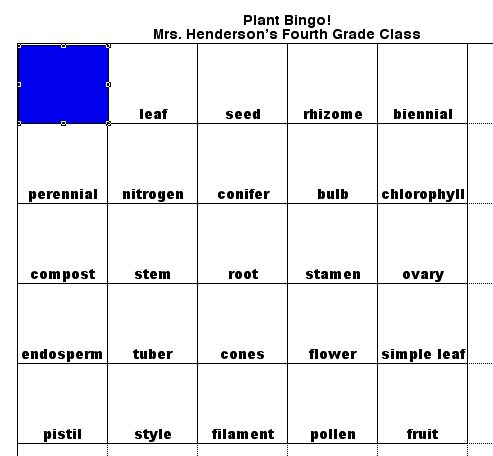
- Drag the blue square to below the game board, on page one.
You have created a game piece that's the right size to cover a square
on the bingo board. Just one piece? That's right! Students easily
can create as many pieces as they need, so you don't need to waste
time making more. Next
: Making multiple boards.
|

