QUICK TIPS AND TRICKS
The following additional quick tips will help you make better use of your Internet Explorer browser.
- To enlarge or decrease the size of text on a Web page, click
View >Text Size and select the size you need.
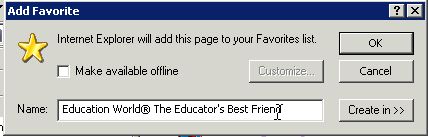
- To save a favorite site, go to that site, and click Favorites.
Click Add or Add to Favorites and then click OK. To rename the
site to something that will help you better remember what it's
about, type the new name in the Name window.
- You also can save that favorite in an existing folder. (Save
a cool new fractions Web site to a folder on math sites, for
example.) Just add the new site to Favorites, then drag it
into the Math sites folder.
- To create a new folder in which to save a Favorite site,
follow the steps above, but before clicking OK, click New
Folder, type a name for your folder in the window, and then
click OK.
- To speed up your Web surfing, try deleting some temporary files.
(Those pages that the computer automatically saves can slow down
performance if your computer is short on memory.) Go to Tools>Internet
Options, choose the General tab, and find the Temporary Internet
files section. Click Delete files.
- Separate the good, the bad, and the ugly by using Content Advisor
to filter out inappropriate Web sites. (At most schools, you probably
have a filter already; if so, this is a helpful tool to share
with parents.) Go to Tools>Internet Options>Content. In the Content
Advisor section, click Enable, and then click Settings. Click
and highlight each category, set the slider to determine how vigilant
you want the filter to be, and then click OK. A window labeled
Content Supervisor Password will open. To prevent students (or
anyone else) from changing your Content Advisor settings, type
a password and then click OK.
Next: Tell me more!
|

