| A TECHTORIAL |
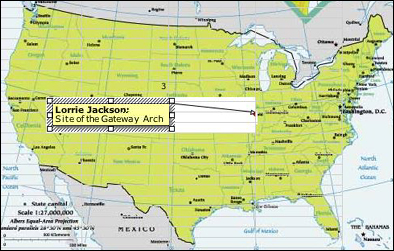
STEP THREE: MAKE IT INTERACTIVE! Now, you can use Excel's Comments feature to insert notes on the map. First, make sure your name will appear on the notes. Click Tools > Option and select the General tab. In the blank to the right of User Name, type your name as you want students to see it (ex. Mrs. Smith), and then click OK. Now, you are ready to insert your comments:
That's it! You've made an interactive map. Below are a few more tips on comments: Have you just discovered some exciting new information about St. Louis? Did you forget to capitalize "Gateway Arch?" To edit or delete a comment, right-click a Comment triangle and select Edit Comment or Delete Comment. After you've made your changes, click anywhere on the map to accept them. Is the map with Comment boxes a little boring for your taste? Right-click a Comment triangle, select Show Comment, and then click anywhere on the spreadsheet. Now, your Comment is always visible on the map. To hide the Comment again, click the Comment triangle (not the Comment box) and right-click Hide Comment. You also can change the fill color, line color, line thickness, and so on of the Comment. Double-click the Comment box and make the changes in the Format Comment window that appears. Then click OK. Next: Learn more.
|