|
- Go to the CIA World Factbook's U.S.
Reference Map.
- Right-click the map and select Save Picture As (or Save Image to the Desktop, Download Image, or another
similarly worded phrase). Save the map on your Desktop as United_States.jpg.
- Return to the Excel Interactive Map Sample document.
- Click View > Header and Footer>Customize Header.
- Click in the Center Section, and then click the Insert Picture icon.

- Browse to your Desktop and select the U.S. Reference Map picture you saved earlier and click Insert.
- Click the Format Picture icon.

- Select Size in the Format Picture window pane that appears.
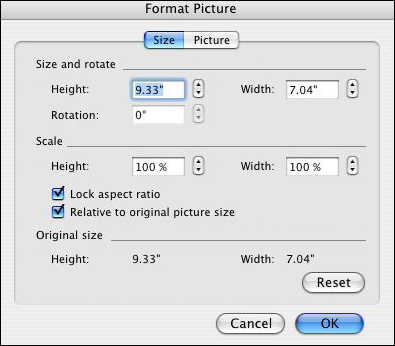
- Enter the height and width you want the picture to be. For the U.S. Reference map, the original size is
fine, however you might want to increase or decrease the size of other pictures you save. Keep the boxes for
"Lock Aspect Ratio" and "Relative to original picture size" checked because those will keep your picture from
becoming distorted as you change its size!
- Select Picture in the Format Picture window.
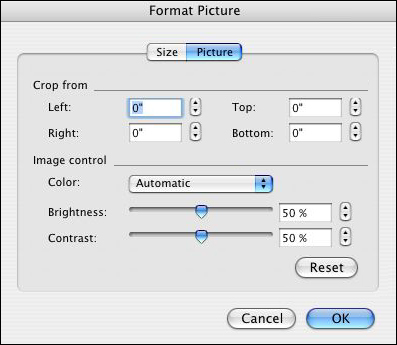
- Make sure Automatic is selected for the Image Control setting (meaning the same color as the original picture).
If you are going to print the map as a worksheet, you want it to print as black and white, not as grayscale).
- Click OK twice.
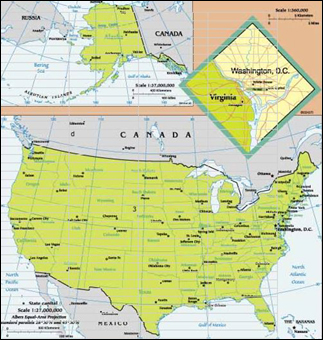
- Your page now should look like this:
- Save your work!
Next: Activate it.
|
|

