| A TECHTORIAL |
|
STEP ONE: MY RECENT DOCUMENTS
Don't be fooled by the name; My Recent Documents lists the files you most recently opened. Start here when searching for a lost file. Click Start and then click My Recent Documents. Look for the missing file in the list that appears. If you don't see My Recent Documents listed in your computer's Start menu, skip to Step 2.
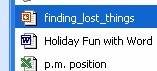
Notice that when you "mouse over" (put your cursor on top of) a file in the list, text appears that describes where that file is saved. In addition, an icon (picture) indicating what program the file was created in appears to the left of the file name. A blue "W" indicates a file made in Microsoft Word; a red circle and square is a PowerPoint slide show; a green "X" is a Microsoft Excel file; and a blue "E" (or possibly a blue "N" in a dark circle) indicates a Web page.
Did you find the file you were looking for? If so, click the file name to open it, and then go to the end of this techtorial for some important advice! If you didn't find the missing file, even though you know you opened it recently, chances are you've opened many files since opening the missing one. Your file might be recent, it's just not as recent as a dozen or so others. Next: Get with the program!
|