|
SOUND, ANIMATION, AND HYPERLINKS
To add sound:
- Go to Insert > Sound > From Gallery and find a sound you like in the PowerPoint Sound Gallery.
- Select the sound folder and click the sound you want to insert in that slide.
- Click Yes when asked if you want to hear it when you first move to that slide.
- Save your work.
To add animation and hyperlinks:
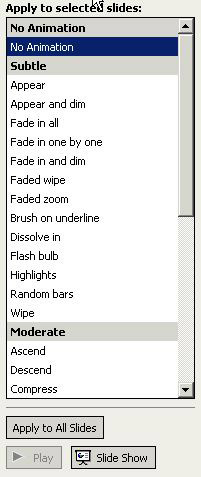
- Insert an animation by selecting Animation Schemes and clicking the animation you want to use.
- Insert a hyperlink by clicking the text or image you want to link to a Web page. Then select Insert > Hyperlink and type the URL of the Web page into the address box.
- Save your work.
Invite students or groups of students to use the above steps to insert images, sounds, and animations into their own slide shows.
Next: Order the slides.
|

