|
CREATING E-PORTFOLIO CONTENTS
Provide students with the following instructions for saving files to their e-portfolio folders:
- Open Microsoft Word (or another word processing program), go
to File>New, and open a new Word document.
- Type the words "Table of Contents" at the top of the document
and center the phrase on the paper. (Do not use an automated Table
of Contents feature for this.)
- Hit Enter (or Return) and type the words "About this Portfolio."
- Hit Enter and type the name of the sample of your work that
you want to save in your e-portfolio.
- Save the Table of Contents page in your new folder as "Table
of Contents."
- Go to File>New, open a new document, and type the words "About
this Portfolio." Hit Enter twice and then type "By" and your full
name.
- Hit Enter twice and type a paragraph explaining what types of
files you'll be including in your e-portfolio.
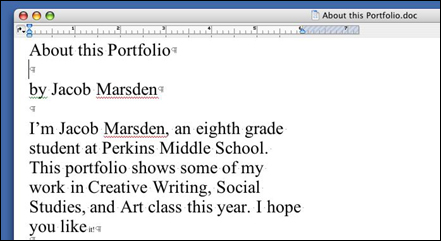
- Save this page in your new folder as "About this Portfolio."
- Find on the computer the sample of work you want to save in
your e-portfolio. Click to open that file.
- Go to File in the menu bar, choose Save As, and resave the file
to the new folder you created.
- Check to be sure you've saved all three documents in the same
folder.
Next: Creating hyperlinks.
|

