|
WORD WONDER # 3
COLLABORATIVE WRITING EASIER
Problem:
In group projects, figuring out which changes individual group members
have made to a document can be difficult.
Solution:
The Track Changes feature allows group members to see what has been
added, deleted, or changed in a document.
Classroom
Application:
Use this feature when working on a collaborative project with any
upper elementary through high school class. Track Changes also can
be useful for educators working together on documents for committees,
team planning, and similar collaborative activities.
Directions:
When using Word 98 and Word X for Mac
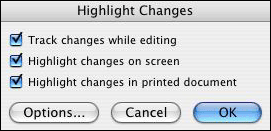
- Go to Tools>Track
Changes>Highlight Changes and check "Track Changes While Editing."
- If you are an editor,
you can add, delete, change words, and so on, and the changes
you make will be marked in red.
- If you are one of
several editors, you can use the options button on the window
at Tools>Track Changes to change ink color, so each editor's changes
will appear in a different color ink.
- If you are a writer,
you can see the editor's (or editors') changes, and accept or
reject those changes by going to Tools>Track Changes>Accept or
Reject Changes.
With Word XP
- Go to Tools>Track
Changes to open the Reviewing toolbar. The toolbar includes four
yellow icons, each with a different symbol (a forward arrow, a
back arrow, a check mark, and a red X ); a New Comment icon; a
Track Changes icon; and a Reviewing Pane icon.

- If you are an editor,
you can add, delete, change words, and so on, and the changes
you make will be marked in red.
- If you are a writer,
you can see the editor's changes, and click the appropriate yellow
icon to accept or reject each change: Click the arrows to move
to the next or previous change; click the check mark to accept
a change; click the X to reject a change.
This technique can be
used for in-depth editing of student work and for a number of professional
tasks. Track Changes especially is helpful for working on committee
or collaborative documents.
Next:
Make bookmarks.
|

