| A TECHTORIAL |
SAVING AND SHARINGSaving your PhotoStory3 project can be tricky. Students and teachers alike get confused, so read carefully.
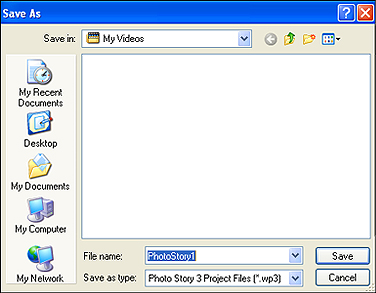
To save a project that�s not yet finished:
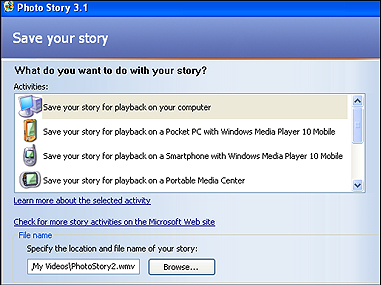
To save a finished project:
Knowing which option to select in the window above can be confusing. For most classroom uses, scroll down the list of options to find "Send the story in an e-mail message." Why? That compresses the show to 1MB or less (because many e-mail clients limit attachments to that size). That size makes the show manageable to save on a classroom computer, put on a network folder, upload to a Web site, or, e-mail to parents or others. Note that image and sound quality are compromised whenever you compress a file, so if you want the very best quality, select "Save your story for playback on your computer." Keep in mind, however, that media files can be HUGE, so you might find that a file becomes too big to save on your computer. Consider resizing pictures, removing music or images, or resaving in the e-mail format if you get an alert saying you don�t have enough disk space to save your project! Next: Learn more.
|