|
To continue in the techtorial you will need to:
- Check to make sure your home or school computer can run Firefox. PCs need to be running Windows 98 or later. If you're using an Apple, you'll need to be on OS X (not OS 9 or earlier), which could be a problem for some schools.
- Check with your school tech staff to determine if you are allowed to download software. Some schools have policies that forbid teachers installing software; others have set teachers' user profiles (permissions) so they cannot install software.
For more information, see Firefox's Technical Requirements page.
Now, let's get started. To download Firefox
- Go to the Firefox download page. You'll need to use your current Web browsers (Internet Explore, Safari...) to access the site. (Apple users: Past versions of Firefox have installed better if accessed first from Internet Explorer rather than Safari, although that problem might have been corrected recently.)
- Find the large button at the top of the page called Download Firefox.

Note that the button says "for Mac OS X." The Web site can determine which platform and operating system you're using, so PC users will see this image:

- Click the button and then click Accept as the license agreement for Firefox appears.
- The installer program called Firefox now should be sitting on your Desktop. Double-click the file to install Firefox.
- You might see an alert that says "Do you want Firefox as your default browser?" That means if you're reading a Word document or other file and click on a hyperlinked phrase, then that Web page will open in Firefox rather than another browser. Unless you're ready to make the switch permanently, click No for now.
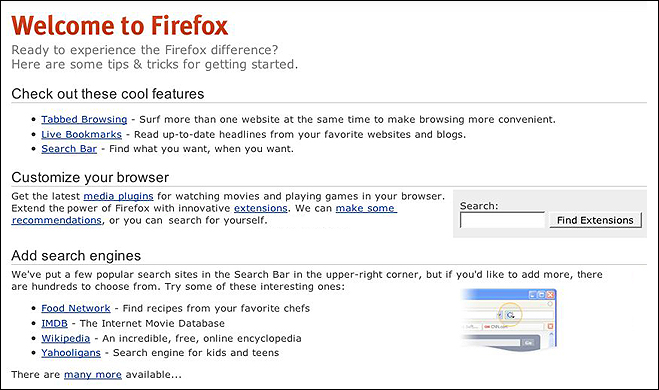
- That's it! You now should see the Welcome Firefox page.
Next: Downloading Firefox.
|

