A TECHTORIAL

STEP TWO CONTINUED: THE FURNITURE


To create desks and other furniture, use the Autoshapes drawing tool.


Draw outlines of the furniture, and then move each piece to its correct location on the chart. (Don't forget, you can click an object you've drawn and then click CTRL D (or Command D on a Mac) to make a duplicate of that object.) Be sure to include as furniture such items as a podium, projector, bookcase, chair and so on -- any items that take up space should be on the chart.

After you've made all the student desks, you might want to straighten the rows a bit. To do that:

  • Hold down the Shift key and click each desk to select it.
  • When all the desks are selected, click the first icon on the Drawing toolbar.
  • Click Align/Distribute, and select either Align Middle or Distribute Horizontally (or another choice)!

Finally, you can format the size of the furniture to correct the dimensions of the room: Double-click any piece of furniture to open the Format Object window and then type in a precise size for that object. To make things easier to calculate, you might want to consider reducing the size of items on the chart to a 100th of the size of the actual piece of furniture. (A desk measuring 37 inches wide would be .37 of an inch on the schematic, for example.)

Don't forget to save your work.

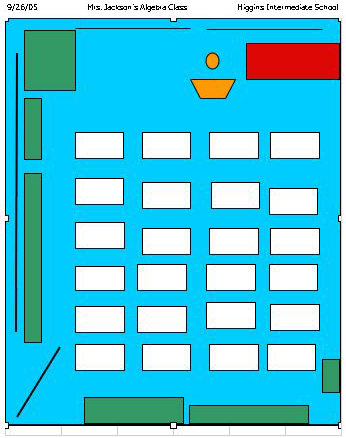
Your seating chart might look something like this:

Next: Who sits where?


Close window