STEP TWO: CREATING THE QUESTION AND DATA VALIDATION SETTINGS
Next, we need to create the survey question and validation criteria for the answers. To do that:
- Click the tab marked "Questions" (formerly Sheet1) at the bottom
of the worksheet.
- In Cell A1, type the question, "Where do you exercise most often?"
- Increase the size of column A to fit the question. (Double-click
the tiny line between the A and B column headers.).
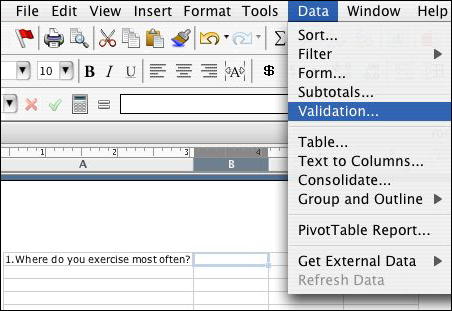
- Click Cell B1, and then click Data>Validation.
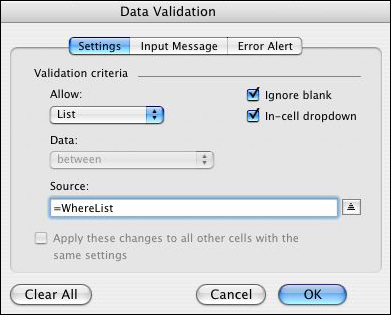
- Click the Settings tab. That tells Excel what type of data you
want in this cell -- in this case the list we typed above. So,
choose "List" from the Allow menu and type "=WhereList" in the
Source blank. (See the screenshot below.)
- Click the Input Message tab/button. That tells Excel what message
you want to pop up when respondents get to the question, "Where
do you exercise most often?" You can leave the area blank or enter
a title (such as "Most Likely Place to Exercise") and an Input
Message (such as "Please select one of the choices below."). If
you don't think your respondents need a prompt, you can omit it.
- Click the Error Alert tab/button and type in the Title blank,
"Please choose from the list." You can leave the text area blank
if you want to.
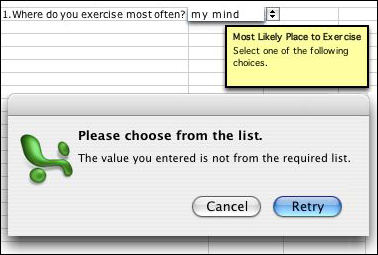
- You now can see your input message, and up and down arrows to
the right of cell B1. That is where respondents will find the
list of possible answers. Click an arrow to see the list appear.
(Try typing a wrong answer ("my mind," for example) to see the
error alert pop up.
Repeat Steps 1 and 2 for each question on your survey. (Limit the survey to 5 questions or fewer.) Note that you can put lists anywhere on the Lists worksheet. They do not have to be next to each other, so spread them out.
Don't forget to save your work!
Next: Polishing and
publishing.
|

