TASK ONE: CLEAN UP YOUR COMPUTERS
You clean and straighten your classroom to prepare for the new
school year. Why not do the same for your technology?
- Use a soft cloth or paper towel dampened (not dripping!) with
water to clean your computer's plastic case.
- Use a paper towel moistened (not dripping!) with a household
glass cleaner to wipe the monitor screen. (Do not use cleaner
on laptops or other LCD screens.)
- Turn the keyboard upside down and shake slightly to remove dirt
and debris. You can also purchase a compressed air tool to force
out debris.
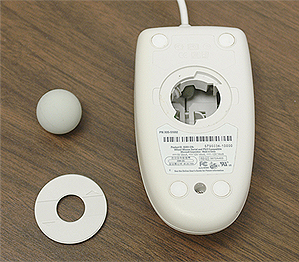
- Turn the doughnut-shaped plastic piece on the back of each mouse
and remove it. Remove the ball and use your fingernail to gently
scrape any dirt from the rollers. Wipe the ball clean with a soft
cloth and replace it and the doughnut-shaped piece.
- Make sure the fan at the back of the desktop computer and the
vents on the monitor are clear of papers or other materials that
might restrict air flow.
- Plug in to a surge protector all power cords or attach them
as directed by tech staff.
- Make sure the keyboard, mouse, printer cable, and network cable
are securely connected.
- Turn on your computer and print a document, surf the Internet,
and open any software you regularly use to see whether everything
is working correctly
- Take a few minutes to straighten up the files on your Desktop.
See ABCs
of PC Maintenance for more details on file management and
cleaning up your hard drive.
- Repeat the above steps with each student computer -- and with
your home computer or laptop too.
Next: Locate tech support.
|

