|
STEP THREE: INSERT TEXT
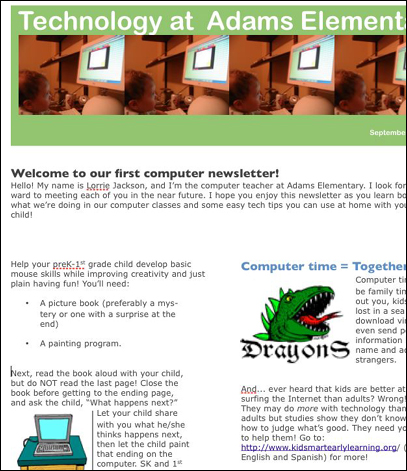
The final step in creating the newsletter is to replace the nonsense text with real text containing information pertinent to your school and classroom. To insert text:
- Click the title "Education Newsletter" on page one and type
a new title. For this sample technology newsletter, type "Technology
at Adams Elementary."
Note that "Technology at Adams Elementary" is too
long to fit in the allotted space; it continues to a second
line. To correct that problem, simply highlight the phrase and
then press the Apple (command) key and the minus "-" key several
times, until the title is the correct size for the space.
- Next, click any other text area in the newsletter and type whatever
information you want to add. You even can copy and paste information
from another document or from the Internet. (Be sure to cite your
source!)
Notice that the program moves graphics and text around
to better fit the page. You also can move graphics that no longer
seem to fit. In the illustration below, for example, the bulleted
list at the beginning of the article in the left column didn't
look just right next to the laptop graphic. By dragging the
graphic lower, the bulleted list fits better in the column.
- Save your work.
- Print your newsletter -- or send it electronically -- to parents
and others.
Next: Learn More.
|

