STEP THREE: ADD THE STORY AND FORMULAS
- Use the scrollbar at the bottom of the spreadsheet to scroll
right to page 2. (If you don't see the line indicating the page
break, click View>PageBreakPreview>OK and then click View>Normal.)
- Begin typing the story in the first cell on page 2. You'll probably
get 1-2 words in each cell. Do NOT resize cells on this page!
- When you get to the place at which the first prompt response
should appear, hit Tab, and then type =B2 (the location of the
cell that contains the blank for the first prompt response). Note
that the formula for each prompt response must be in a its own
cell, separate from the words -- and even punctuation marks --
in the story.
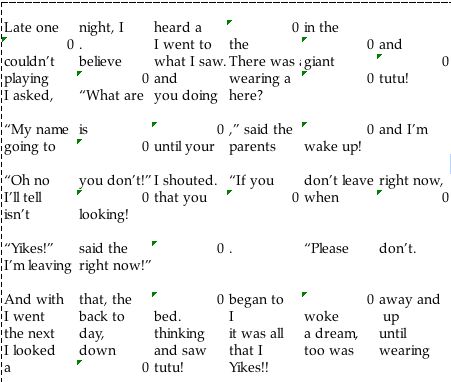
- Hit Enter (or Return) to move to a new cell. Notice the 0 that
appears in the cell in which you typed the formula? The 0 tells
you that the computer can't find a word to insert in that cell
-- which is correct. To be sure you've typed the correct prompt,
scroll to page 1, type a word in the first blank, then scroll
back and see if the word you typed appears where the 0 was before.
If it does, the formula is correct.
- Continue typing the story, typing =B3 to indicate the second
substitute word, =B4 to indicate the next substitute word, and
so on. Don't forget to hit Tab before each prompt response formula,
and Enter (or Return) after each prompt response formula. (Remember,
if a prompt response formula ends a sentence, you need to insert
the period, exclamation mark, or question mark in the cell AFTER
the prompt response formula cell, NOT in the same cell.)
- When finished, the story should look something like this:
- Highlight all the cells on page 2, click the font icon (a letter
A with a line under it), and change the font to white. The story
should disappear. If you don't see the font icon, click View>Toolbars>Formatting
to view it.
- Save your work.
Congratulations. You did it!
Next: Showtime!
|

