STEP TWO: FILL-IN-THE-BLANKS
To create the fill-in-the-blank sheet:
- Open Microsoft Excel.
- Click File>Page Setup>Landscape>OK.
- In cell A2, type a prompt for the first word you want the user
to enter.
Prompts can simply indicate a word form (noun, verb,
adjective, pronoun, and so on), or be commands ("Write a color
word!") or questions ("What is your favorite color?"). For example,
in the story skeleton for "A Spooky Adlib Story," the letter
"A" indicates a word that's a sound. An appropriate prompt might
be, "What is the silliest sound you've ever heard?"
- Hit Enter (or Return).
- Type a prompt for the second missing word in cell A3 and then
hit Enter.
- Continue adding prompts in the cells in column A, until you
have provided a prompt for each fill-in-the-blank in the story.
- Click in cell B2, and highlight all the cells in column B down
to the cell to the right of the last prompt.
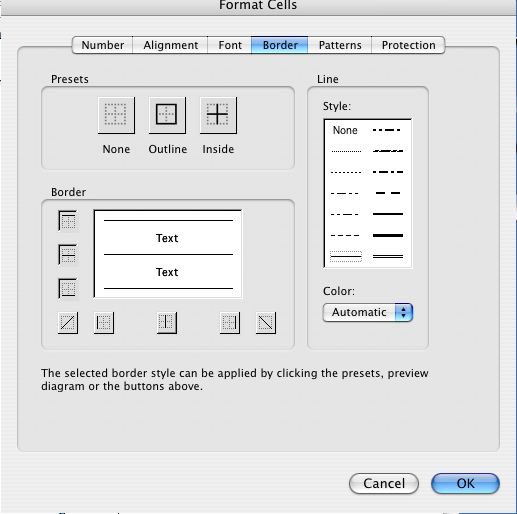
- Click Format in the Excel toolbar; click Cells in the drop-down
menu that appears; and then click the Border tab.
- Find the box in which the word(s) Text appear. Click the box
in the middle, at the top, and at the bottom. Three horizontal
lines should appear. (If a line appears in the wrong place, click
again to delete it.)
- Click OK.
- You now have underlined blanks to the right of each prompt.
Click cell B2, click Format>Cells>Border, and then click the line
at the top of the "Text" box to delete it.
- Click OK.
Next: Making it all fit.
|

