STEP TWO: ADD QUESTIONS AND ANSWERS
Next, create the content:
- Click the Word Processing icon at the top left of the Tools
bar. (It looks like a blue A on a piece of notebook paper.)
- Click the 75 at the bottom left corner of the browser window
and choose 100 percent again.
- Click the left margin tab on the ruler at the top of the document,
and drag it to the right until the left margin is set at 1.5 inches.

Hit Return.
- Click the center align icon, and type Spooky Quiz. Hit
Return.
Note: For the purpose of this techtorial, you are
going to create a quiz on state capitals. If you prefer, you
can use actual classroom content instead.
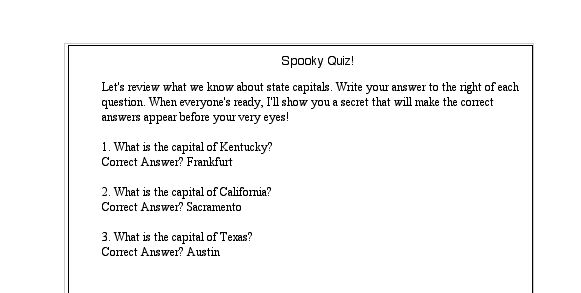
- Click the left align icon, and type the following directions:
"Let's review what we know about state capitals. Write the correct
answer to the right of each question. When everyone is ready,
I'll show you a secret to make the correct answers appear before
your very eyes!"
- Hit Return twice, and then type: 1. What is the capital of Kentucky?
- Hit Return and type: Correct Answer? Frankfort.
- Hit Return and type: What is the capital of California?
- Hit Return and type: Correct Answer? Sacramento.
- Hit Return and type: What is the capital of Texas?
- Hit Return and type: Correct Answer? Austin.
Your page should look like this:
- Save your work.
Next: The answers disappear!
|

