|
THE LETTER C: FINISH THE WORKSHEET
- Click the top of the left column; the I-bar will blink. (The arrow will be gone.)
- Click the Insert command at the top of the screen and click Insert Column Break. The cursor now will appear at the top of the column on the right.
- Click the Center Align icon.
- Hit the RETURN key 20 times and type the letter "C."
- Highlight the letter C and change the font size to 72 (by changing the number in the drop down menu just above the name blank. (You can change the font style too.)
- Want a different font color? Go to Text > Text Color and click the color you
want.
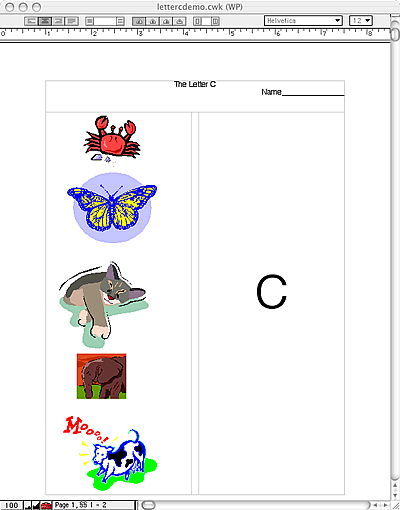
- Your worksheet should look like this:
- You're finished! Save your work.
Next: The Letter C: Teach the activity.
|

