|
THE IMAGE
Have you ever seen a motivational poster -- one featuring a photo of nature and an inspirational message? Let's use a background picture and WordArt text to make a motivational poster for your classroom.
Picture it!
- Click the Paint Can and click Fill Effects.
- Choose the Picture Tab and select Picture. You now should now see the My Pictures folder from your My Documents folder.
- Click to open the My Pictures folder. In addition to the images you have saved in that folder, you should see four additional photos -- hills, sunset, water lilies, and winter.
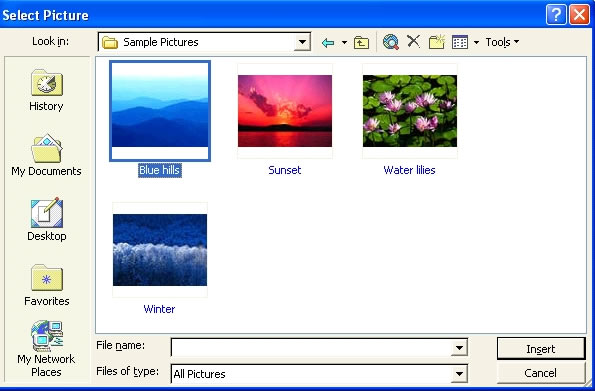
- Double-click the photo of the sunset to make that image your poster's background.
(Note: if you do not see these pictures in your My Picture folder, you can insert another picture (See the techtorial Holiday Worksheets with Word for more on inserting images.) or use a plain color or other fill effect for the background instead. If you use another picture, however, be sure to click the box that says "lock picture aspect ratio" to prevent your photo from being distorted.)
Next: Write about it!
|

