|
A CLOSER LOOK
Do you want to see what a TrackStar track looks like?
- Go to TrackStar.
- Under Find a Track, type the number 176474 next to View Track #.
- Click Go.
- Click View in Frames. (If you have a computer seven years old or older, or a computer that's running a very slow Internet connection, click View in Text instead.)
- Look at the track on Sadako and A Thousand Cranes. Your screen should look like this:
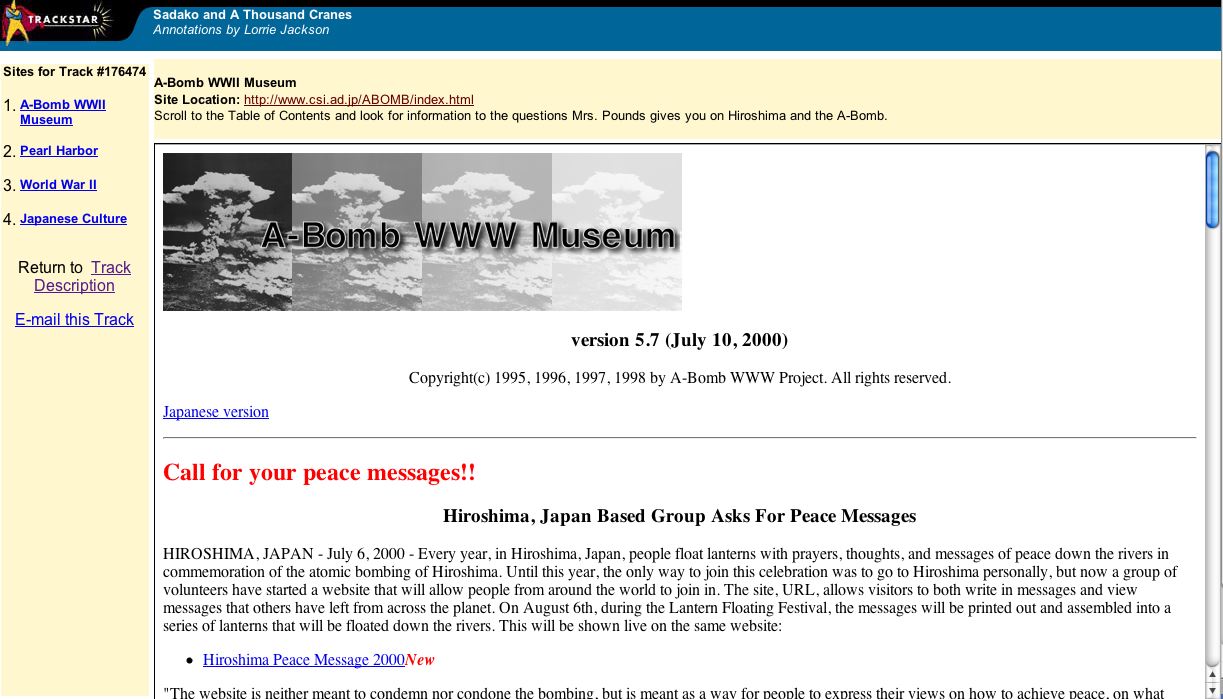
- Four Web site links -- A-Bomb WWII Museum, Pearl Harbor, World
War II, and Japanese Culture -- appear in the menu in the left
frame. Click each link; notice how the Web site in the middle
frame changes as you click a link. That feature makes it easy
for students to navigate between sites -- and makes it less likely
they'll get lost in cyberspace.
- Look at the frame at the top of the window. Here, track developers
can provide annotations to help students find questions they are
to answer or directions about what to look for at a particular
site.
Now that you know what a basic 'track' looks like, you're ready to make a track of your own. All you'll need is Internet access, an e-mail account -- and ten minutes.
We'll begin by making a "demo" track -- a track that stays active for only one week. That will allow you to learn how to use TrackStar, while saving site space for the real tracks you'll be creating later. The topic we'll use for the demo track is "American Revolution Sites for Middle School." (Of course, if you have a topic of your own and three-to-five Web sites on that topic, you can use the information to create a real track.)
Next: Creating an Account.
|

