INSERTING HYPERLINKS
- In the file called main.doc, hit Return/Enter, and type "Click
Here to Go to My Poetry Page."
- Highlight that sentence, go to Insert>Hyperlink, click File
(or Document), and browse to find poetry.doc.
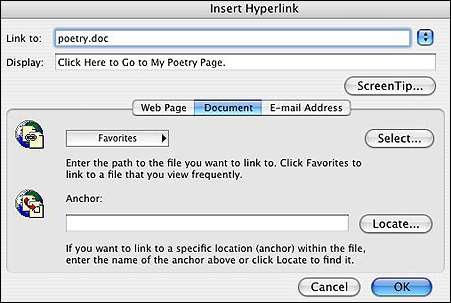
- Click the file name, and then click OK.
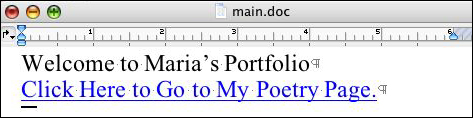
The sentence "Click Here to Go to My Poetry Page" now is underlined
and in blue ink, and the main page is linked to the poetry page.
- Go to journal.doc, type "My Journal," type "Click Here to Return
to the Main Page," and repeat the steps above to link the journal
page to the main page.
- Go to the poetry page, type "Click Here to Return to the Main
Page," and repeat the steps to create a link from poetry.doc to
main.doc.
- Create as many pages as needed for the e-portfolio and link
them to one another.
- Create a new folder on your Desktop and drag all the documents
you've created into it.
That's it! If this were a real e-portfolio, you'd want to save it where others
could view it -- on the Web, a network server, or even just a classroom
computer that's available during parent conferences.
For more details on setting up e-portfolios, be sure to
see the Education World techtorial Using
Hyperlinks to Create Student Portfolios.
Evaluate a student's e-portfolio based on content (what's in it), style (how clean and accurate is it), and student reflection (why the student chose the elements that are included in the e-portfolio and what the student learned from those selections).
For more information about evaluating e-portfolios, check out Assessment of Electronic Portfolios.
Next: Learn More.
|

