|
ADDING SOUND
You also will want to add a sound file to the final slide, so students are alerted that time is up. To add sound:
- Click Slide 12.
- Click Insert>Movies and Sound>Sound from Gallery. Choose a sound
that will alert students that time is up. (Be sure to check YES
when asked if you want the sound to automatically play at the
end of the slide show.
- If you don't have many -- or any -- sounds to choose from in
the Clip Gallery, go to Microsoft's online Clip Art Gallery. (Select
Clips Online or just Online -- depending on your version of PowerPoint
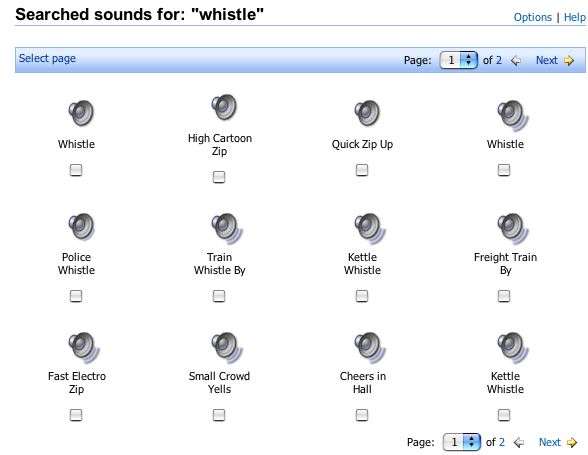
-- under Insert>Movies and Sounds>Sound from Gallery.) Below is
an example of what you might find available for a whistle sound
at Microsoft's Online Gallery:
- Save your work.
You can jazz up your countdown clock in other ways as well:
- Record your own sound (under Insert). To do that, you'll
need either an external microphone or one built into your
computer.
- Insert a sound in all the slides to let students know that
time is ticking away. Keep the sound short so it doesn't distract
students from their work.
- If sound is not enabled on your classroom computer, grab
students' attention by changing the background color of each
slide. (Click Format>Background), or by changing slide design
or font color and size.
When you're finished, click Slide Show>View Show to test the
countdown clock. Click from slide to slide to see if the clock
works!
Use your countdown clock for timed group or individual work
in the classroom - and out of it. The clock will help keep adults
at committee and in-service meetings motivated and on task too.
 |
|
|